How to reinstall VMP™ VPN on Android
In this tutorial, you will learn how to reinstall the VMP™ VPN application on your Android device.
Reinstall VMP™ VPN on Android
Follow the steps below to fully remove and cleanly reinstall the VMP™ VPN app on your Android device.
Step 1: Locate the App
Long‑press the VMP™ VPN icon and choose App info. Alternatively go to Settings > Apps > VMP™ VPN.
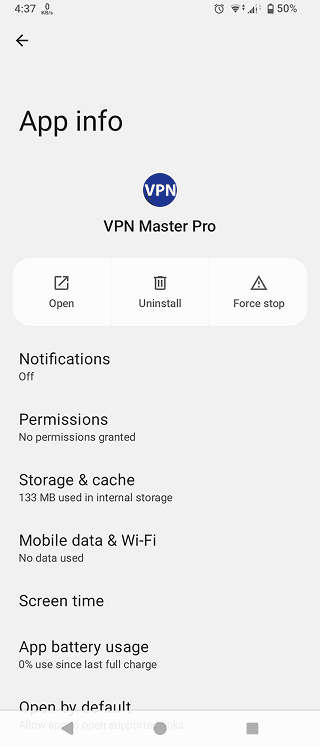
Clear App Data Before Uninstalling (optional)
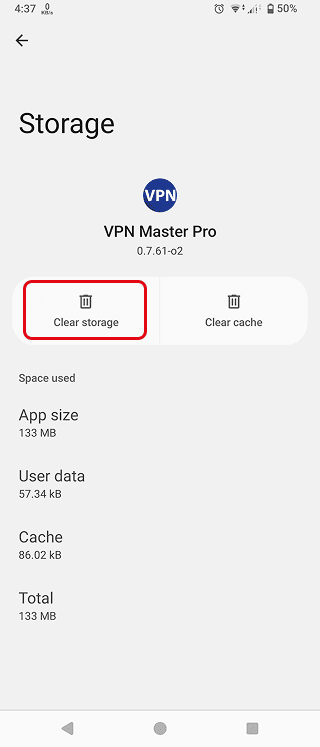
Tap on "Storage & cache" and then "Clear Storage/Data". Then back on the app info screen.
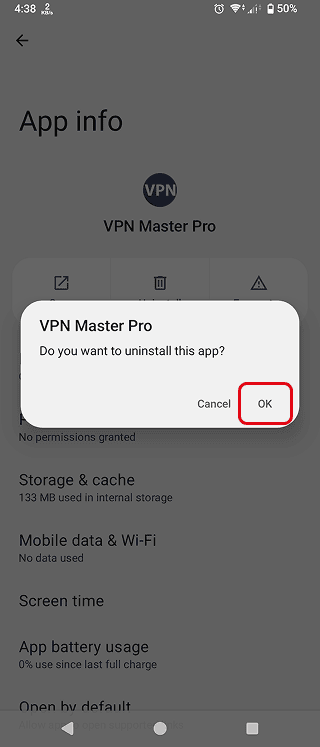
Step 2: Uninstall the Current App
Tap on "uninstall". Tap on "OK" to confirm.
Step 3: Remove Old VPN Profile (If Present)
Go to Settings > Network & Internet (or Connections) > VPN. If any VPN profile remains, tap the gear icon or 3 dots and select Forget / Delete.
This prevents conflicts with the new installation.
Step 4: Restart Your Device
Rebooting clears cached processes and closes lingering VPN tunnels.
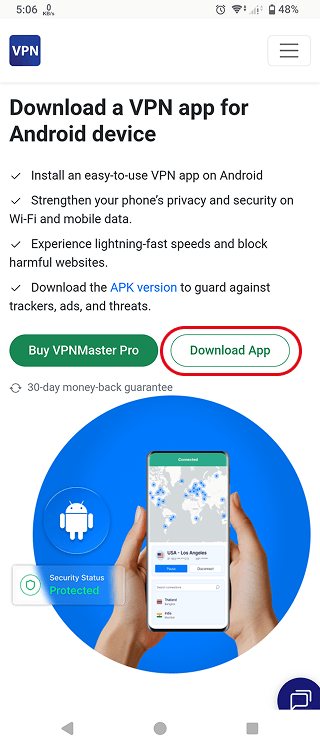
Step 5: Download the Latest Version
Visit the official download page: VMP™ VPN Download Page.
Step 6: Follow Setup Instructions
Now follow the article on How to setup VMP™ VPN on Android for full instructions.
Need More help?
If you are experiencing issues, please reach out to our support team for assistance.